These settings relate to the very latest build and this page is updated to reflect the latest build.
There will be differences between versions.
Once you have entered your account info into the DEM Earth prefs, and activated your license, you can select a DEM Earth object, from the main menu (or from the extensions menu).
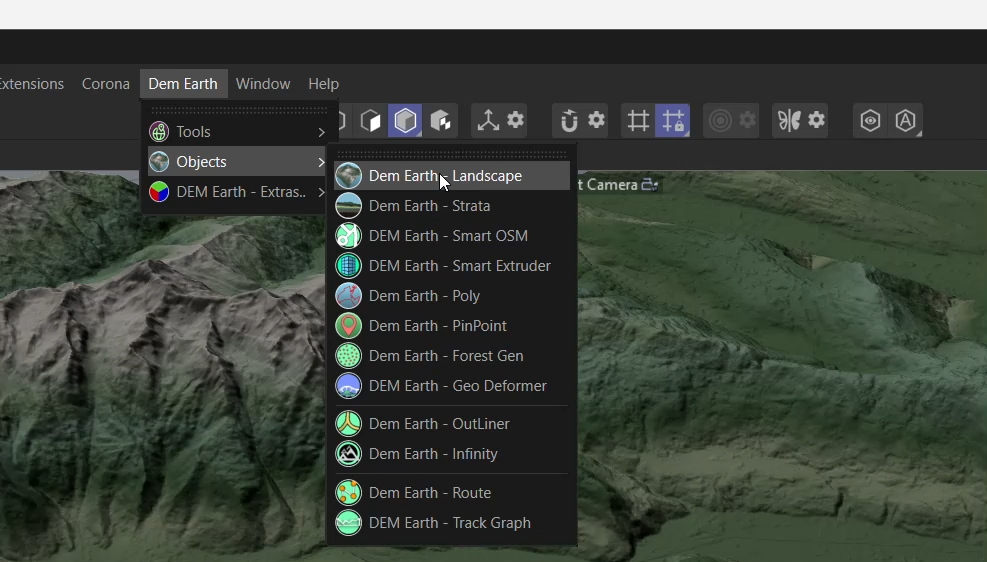
When you add a DEM Earth object, if the plugin license is activated, DEM Earth will begin download data for the area of focus. If. If you have a valid GPS coordinate in the clipboard, this will be the initial area of interest. You can set your own custom default starting location, in prefs.
Once the DEM Earth object is in your scene, and height data has loaded, you will see the landscape, with the default Smart Gradient.
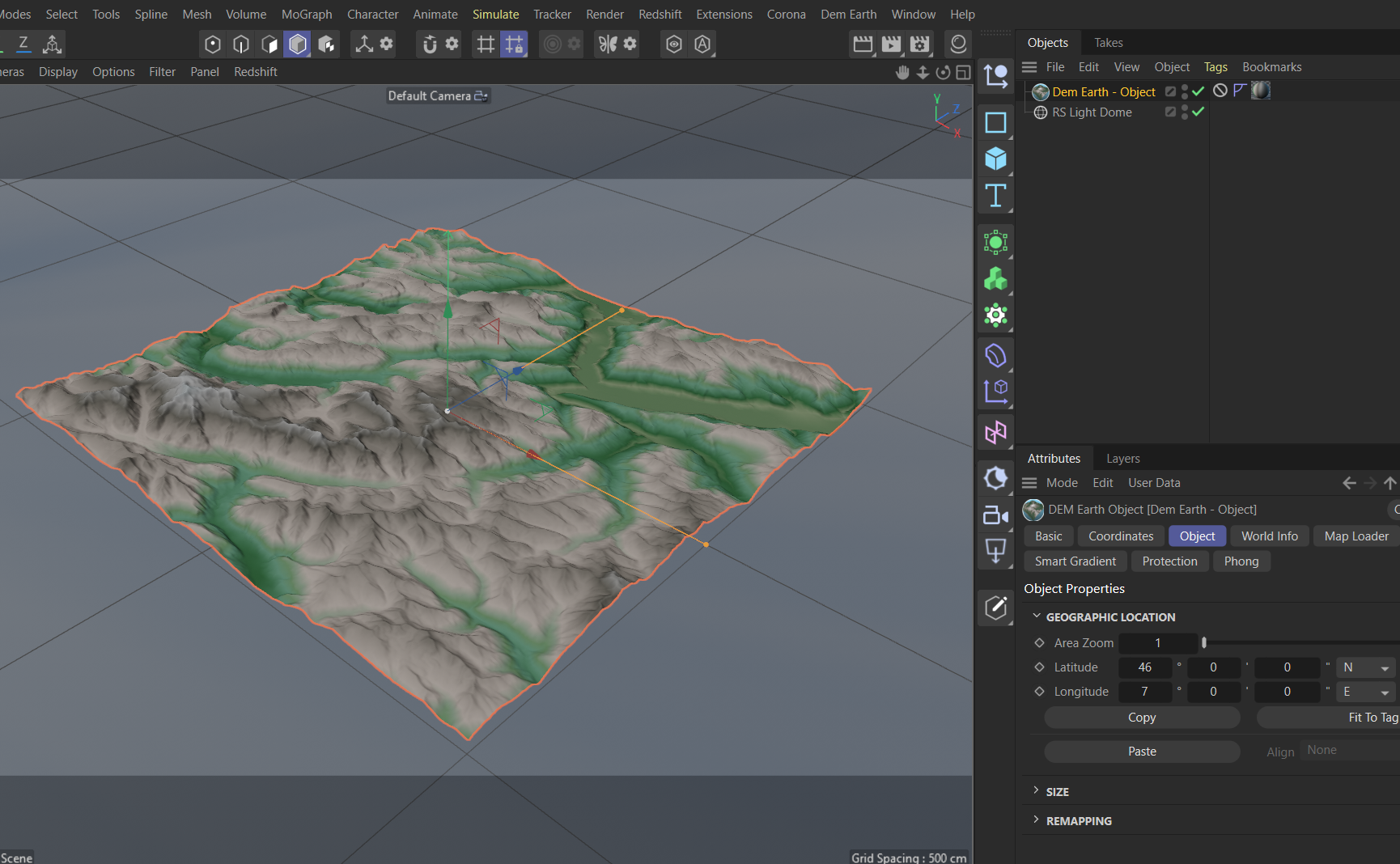
In the viewport, if you are in the default "Model" Mode, and the Tool is "Move" (both of the are the default state in c4d), if you click on the DEM Earth object, hold the LMB, and pan around, the coordinate will update.
The DEM Earth object is the main object, which does most of the work. It is used for controlling everything under it. Most other DEM Earth related objects, need to be dropped under a parent DEM Earth object. They then reference the coordinates for what they do, from the parent object.
Geographic Location
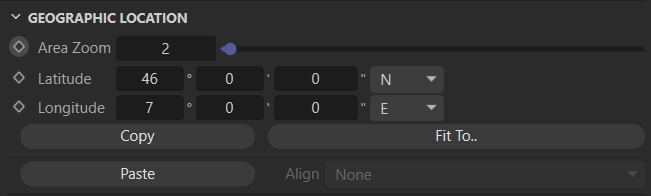
Area Zoom
Zoom in and out with this setting.
Higher values zoom in, reducing the area and data size.
Lower Values increase the area size and the amount of data required to show it.
Latitude
The lat coordinate center of the visible area.
Offset.NS
An offset to the Lat coordinate center. This changes when you move the are via mouse click in the viewport.
Longitude
The lon coordinate center of the visible area.
Offset.WE
An offset to the Lon coordinate center. This changes when you move the are via mouse click in the viewport.
Paste
Past a coordinate from the clipboard.
Copy
Copy the center coordinate to the clipboard.
Fit To
If There is a georeferencing tag on the DEM Earth object,pressing this button resizes DEM Earth to exactly fit that last georeferenced tag, This can also be useful if you want to bake the projection to UVW (usually for export), as this ensures that you are not wasting texture space.
Water
Version(>=6.225)
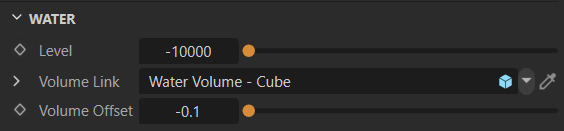
Sea level (water level). This is the cut of point. Anything below this height will be flat.
Volume Link.
A Link which accepts either a Cube or a Plane. Link the object and drop it under DEM Earth.
- A plane will size to the same dimensions as DEM Earth, and always be at water->level + offset. A plane is useful to fill in a river or lake, inland.
- A Cube will also size to the same dimensions as DEM Earth, but the top of the cube will be at water level, and the bottom of the cube will be at the lowest point in DEM Earth space. This gives a volume object. i.e. With Redshift, you just drop a water material on this column link object, and modify the depth and reflection to great looking depth, if you have bathymetry. A cube can be used as a water volume with a modern render engine giving a nice depth effect.
Volume Offset.
With volume and/or water planes, it is best not to have a plane which is exactly aligned with other planes. A small offset is needed to fix this.
Geometry
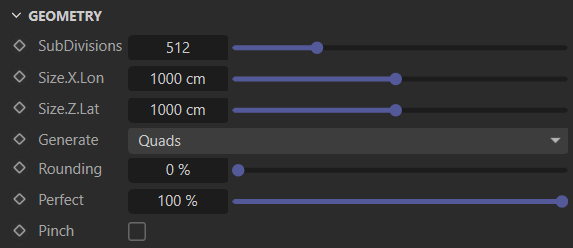
Subdivisions
Increases or decreases the subdivisions, adding or removing detail.
Size.X.Lon
The size of the Object in Cinema 4d space (x axis).
Size.Z.Lat
The size of the Object in Cinema 4d space (z axis).
Generate
Quads or Diamonds.
Rounding
Round off the corners.
Perfect
Reducing perfect geometry adds a small random offset to every point of the base mesh.
Pinch
Modifies the mesh point distribution so that points at the center of the mesh have twice the density of those towards the outer areas. This lets you easily increase mesh definition focused in the center by a factor of 4, without actually increasing the polygon count.
Remapping
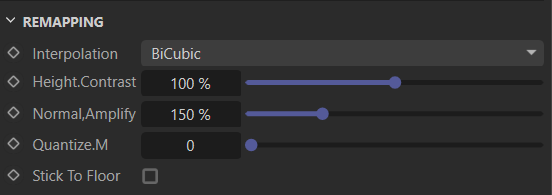
Interpolation
Gives you a few ways to interpret the height data.
Height.Contrast
Change the height profile using a contrast algorithm. This is not the same as simply multiplying height.
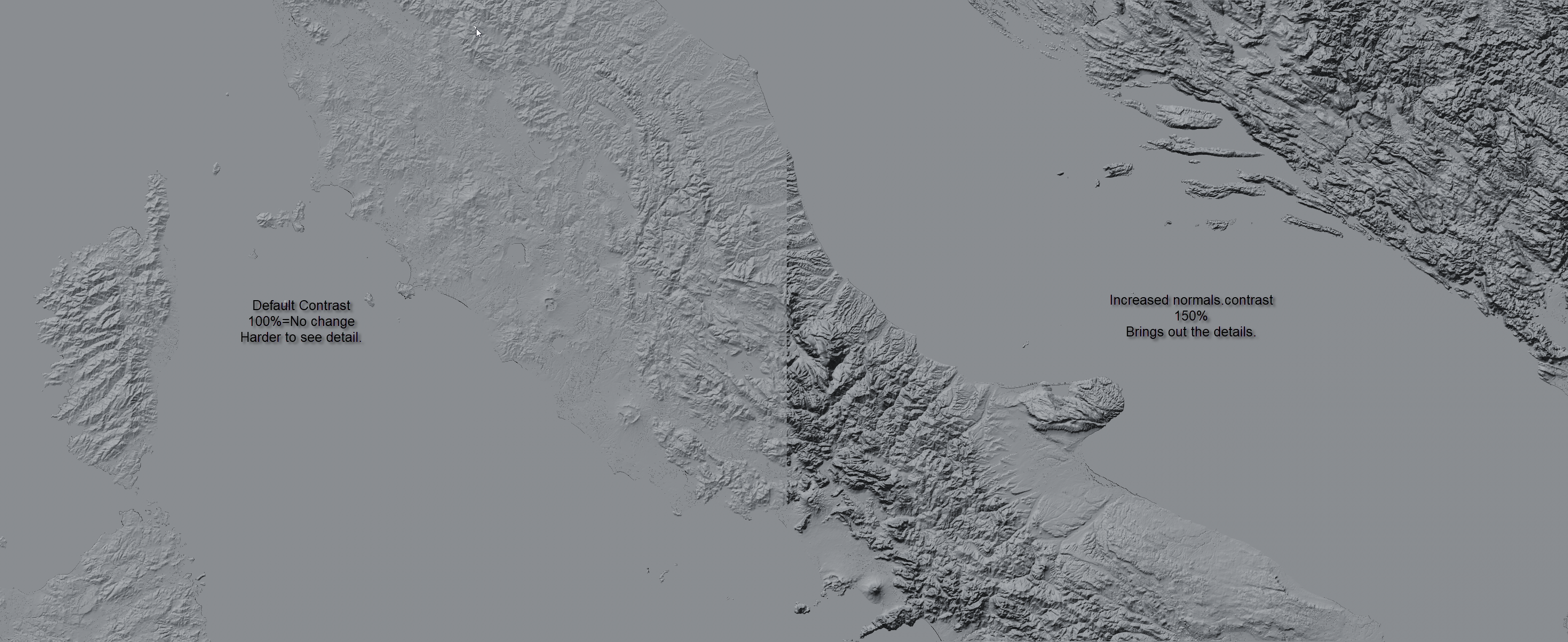
Normal.Amplify
Change the normals using a contrast algorithm (>6.225)
This changes the normals of your landscape without actually changing height values. This helps to make height data easier to visualize. 100% is default. You can also reduce this to i.e. 50% to halve the contrast of your normals. or, i.e. 200% to double the contrast of your normals.
Quanitize.M
Reduces the resolution of the height data, creating a step/quantizing effect, in geographic meters (not c4d meters)
Stick To Floor
Keep the object locked down to the floor. subtracts min height, from the objects height.
World Info
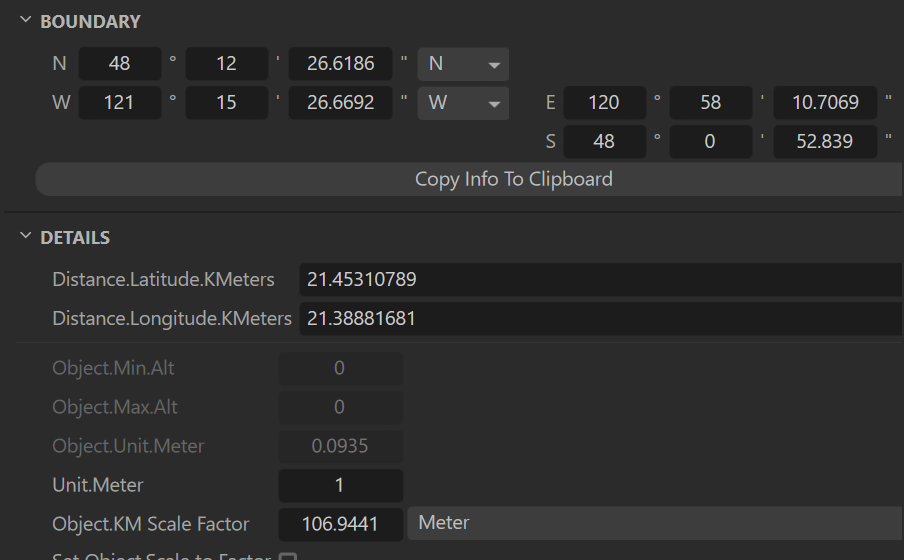
Boundary
Geographic Bounds
Details
Info about the visible area.
Drivers
Shader control links
Map Loader
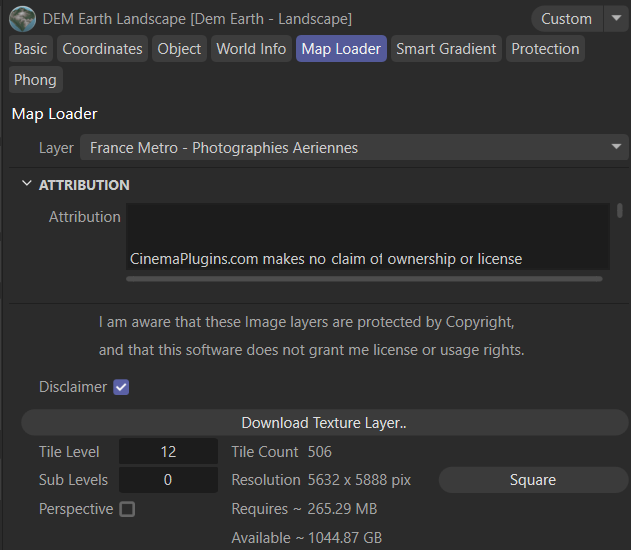
notes:
- If your support is up to date, you will be able to use the map loader. Otherwise it will be greyed out!
- The map loader was rewritten for 5.412, with a complete new backend.
- Some Layers.. are only visible if you have a floating license.
Settings
Disclaimer
You need to agree to the disclaimer to be able to download with the map loader.
Download Texture Layer..
Starts constructing (and downloading imagery, if required). Not all layers require downloads.
Level
Higher levels are higher resolutions and require more tiles to complete.
Layer
Attribution
Info
Some Useful to estimate requirements before you initiate a download job.
- for 5.413 : in newer versions of c4d, the status of a download job is updated in the task manager. When the job is completed, any new materials and/or tags are updated. You don't ever have to wait for downloads to complete, and there are no job or thread limits since 5.413.
- Some layers.. are only available to floating license holders.
Square:
Changes the size of DEM Earth so that the resulting image(s) are squared. i.e. 4k x 4k
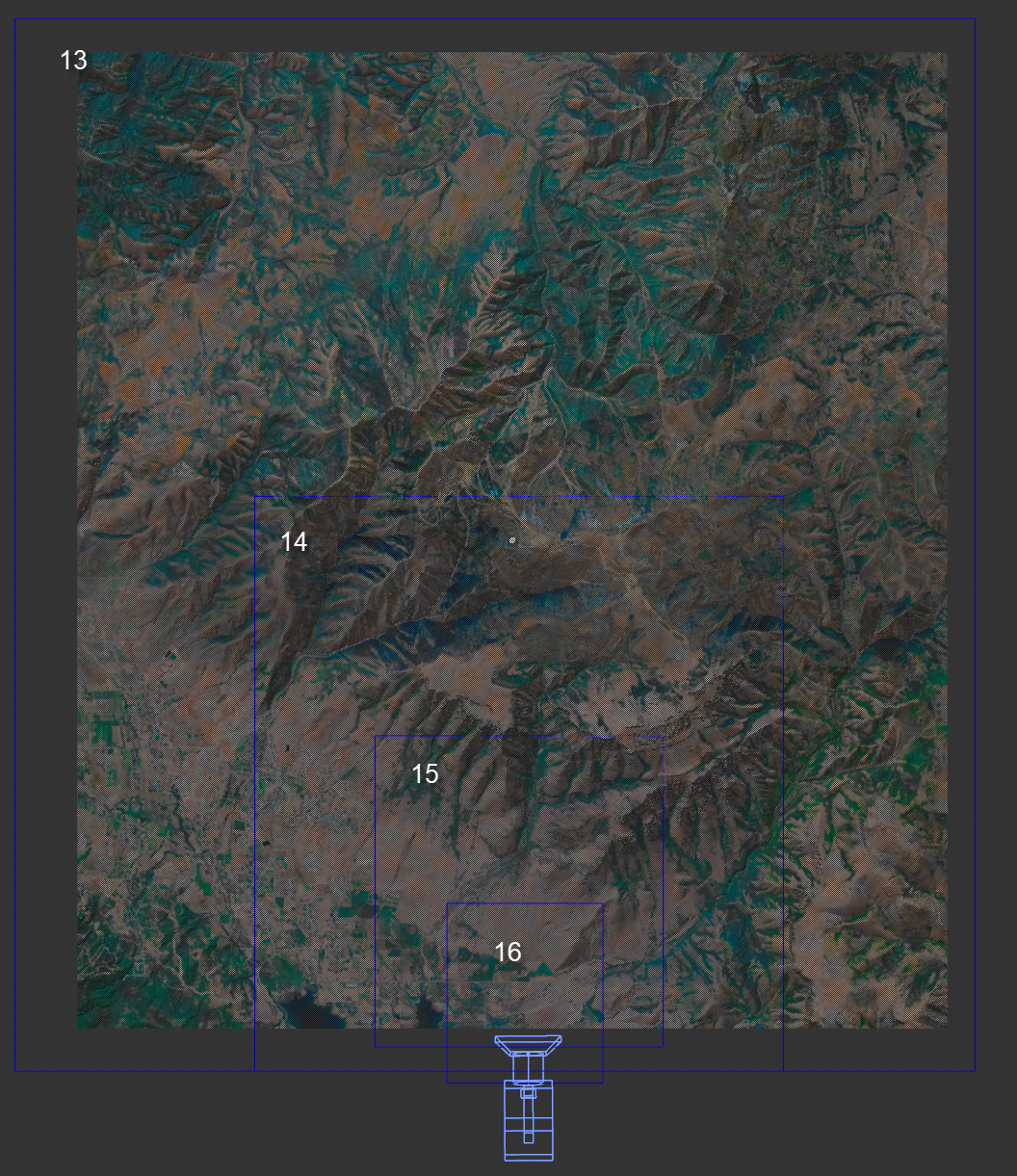
Sub Levels : (>=6.225)
Min 0; (default is no sub levels)
max 5;
Generates sub levels. i.e. lower resolution levels. The max level is the current level. if you add 1 sub level, you generate 2 images. The first image maps to the size of the dem earth area (including any sub objects), at levels -1. The second is half the size of the first, but at the highest level and resolution resolution. This gives you a pyramid of multiple levels, layered on top of each other. Each level is 4x the resolution if the previous level. Think pyramid. Where you have low res a the bottom, and high res at the center. if you activate the "perspective" setting, the pyramids highest level is in front of your camera.
Map Layers..
- There are a multitude of map layers available.
As well as the remote download image layers, there are also procedural layers.
- Baking layers (color and normal) work only with old school materials. it is not possible to bake either RS or octane materials.
- Tile grid and corner layers.
- Export Layers. You can export height data to other tools via export modes.
- In >=6.225, a new 32 bit normalized export mode was added. This is ideal for exporting to WC or Gaea. Bathy is also export.
i.e. using this mode, you can export with any guess work to i.e. Gaea. Smame for WC.
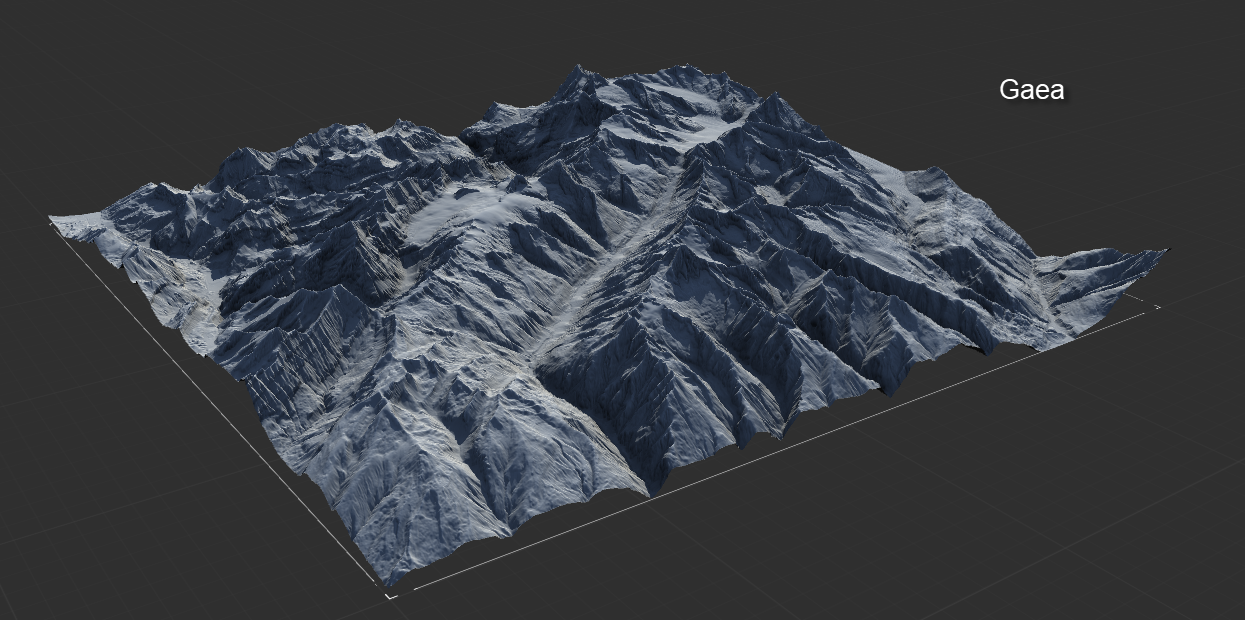
You can then make your modifications and bring those maps back into c4d and DEM Earth.
There is also a custom user layer., which you can connect to your own tile server (see prefs)
Smart Gradients
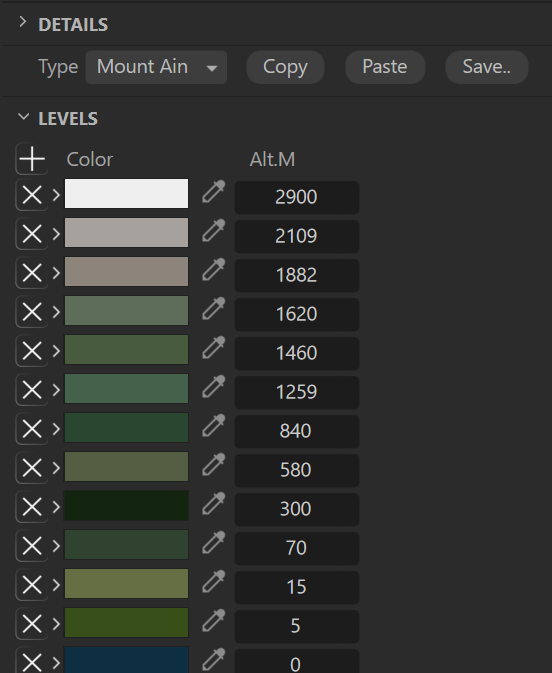
Smart Gradients let you choose colors by Altitude. They then adapt on the fly to your landscape.
Details
A link to a shader.
A min height value and a max height value (set and determined by dem earth itself)
A random seed, used by the Random type, which generates a random gradient for you from this seed number.
Levels
You can easily copy/paste or save smart gradient presets. Any saved preset will show up in your Type list.
+ adds a level color.
X deletes a level.
Color
The color for a specific height value (level color)
Alt.M
The height value for a specific color. These are automatically sorted high to low.